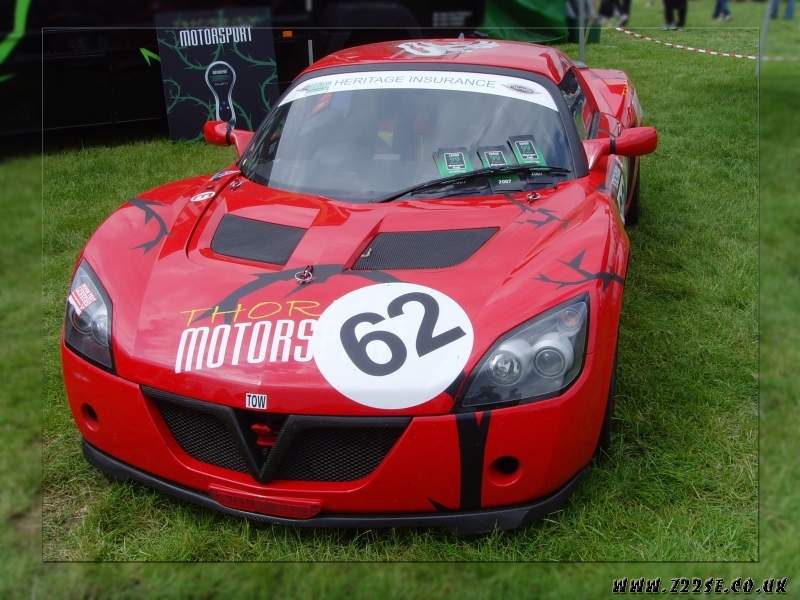
Blur Frame Photoshop Tutorial
Easy way to create a great looking blur frame for your picture.
- Open your photo.
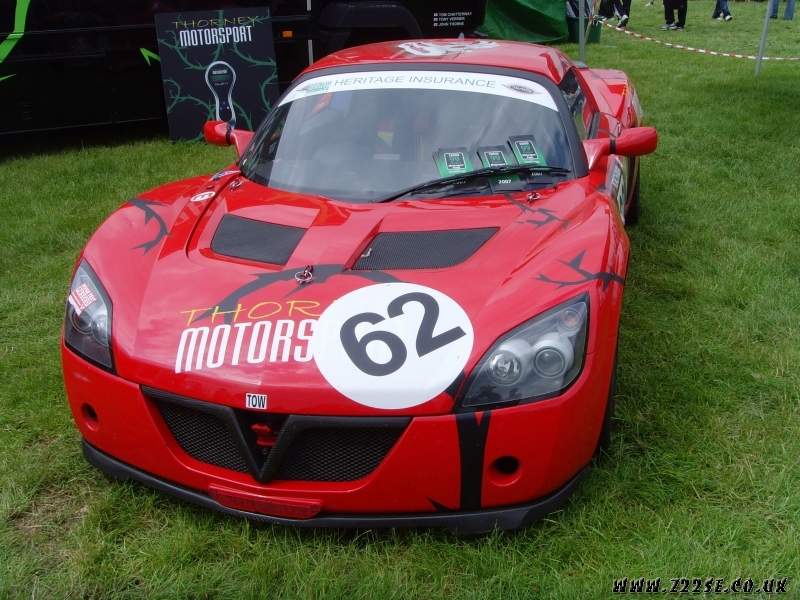
- Select the Rectangluar Marquee Tool and make a selection similar to the one I did below:
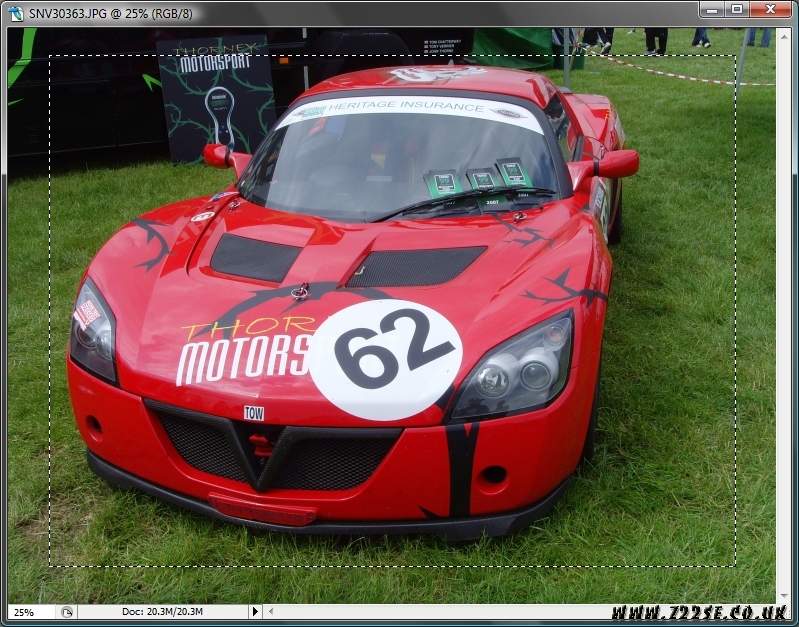
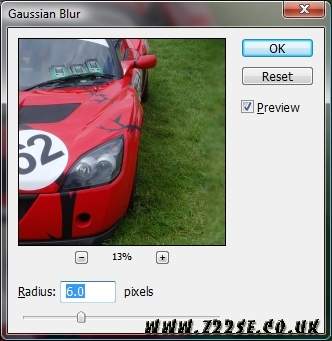
- Hit Ctrl+Shift+I (this wil inverse the selection) and then go to Filter>>Blur>>Gaussian Blur and use this settings(of course, you can change the radius if you want):
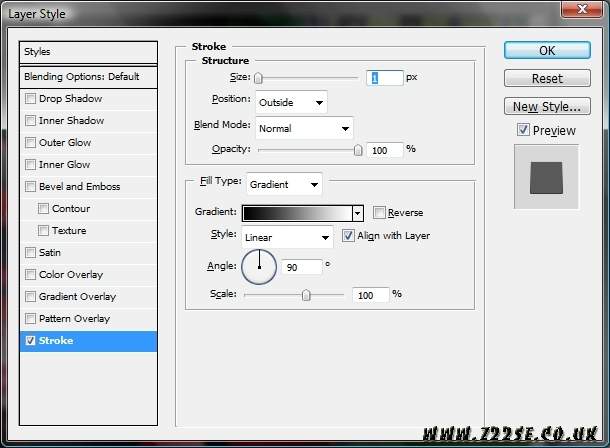
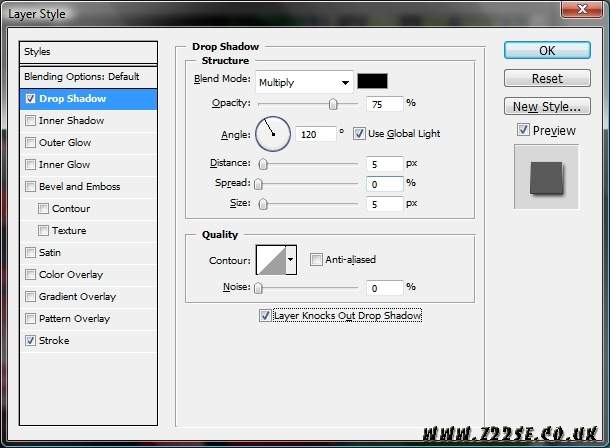
- Now hit Ctrl+Shift+I (this will return you to your previous selection). Then hit Ctrl+J (this will create a new layer. Now, with the new created layer selected, go to Layer>>Layer Style and apply Stroke and Drop Shadow with this settings:
- And you’re done. Here is what I got(of course, you can choose not to apply the stroke or the drop shadow and you’ll still get a great frame):